Automatic video rotation
Switch regular fullscreen YouTube videos to landscape on a tablet used in portrait. Supports the YouTube app and YouTube in Chrome, Brave and Samsung Internet; excludes Shorts.
 Rotation
RoteCat is in development. It combines automatic video rotation, a floating rotation bubble, an edge sidebar, notification controls, a Quick Settings tile and per-app directions. Enable only what you need and choose left or right rotation for each control.
In Settings, check Screen detection and bubble and Screen rotation permissions. Grant only the access needed for the controls you use, then enable their switches.
RoteCat
Switch regular fullscreen YouTube videos to landscape on a tablet used in portrait. Supports the YouTube app and YouTube in Chrome, Brave and Samsung Internet; excludes Shorts.
Tap the cat icon over the screen to rotate 90 degrees. Choose left or right rotation.
Pull the screen edge inward and release to rotate 90 degrees.
Quickly select normal portrait, your chosen landscape direction or Reset from the notification.
Add the RoteCat rotation tile to Quick Settings to change direction with one action.
Search for an app and set its direction. Settings are saved while the switch is off and take effect when enabled and the app appears onscreen.
Choose left or right per control. Adjust bubble size, opacity and visible apps, plus sidebar edge, size, vertical position and opacity.
Choose the app language and optionally keep enabled controls running after closing the app from Recents.
Share or delete diagnostic logs in Settings, or use Fully quit RoteCat to exit the app.
RoteCat
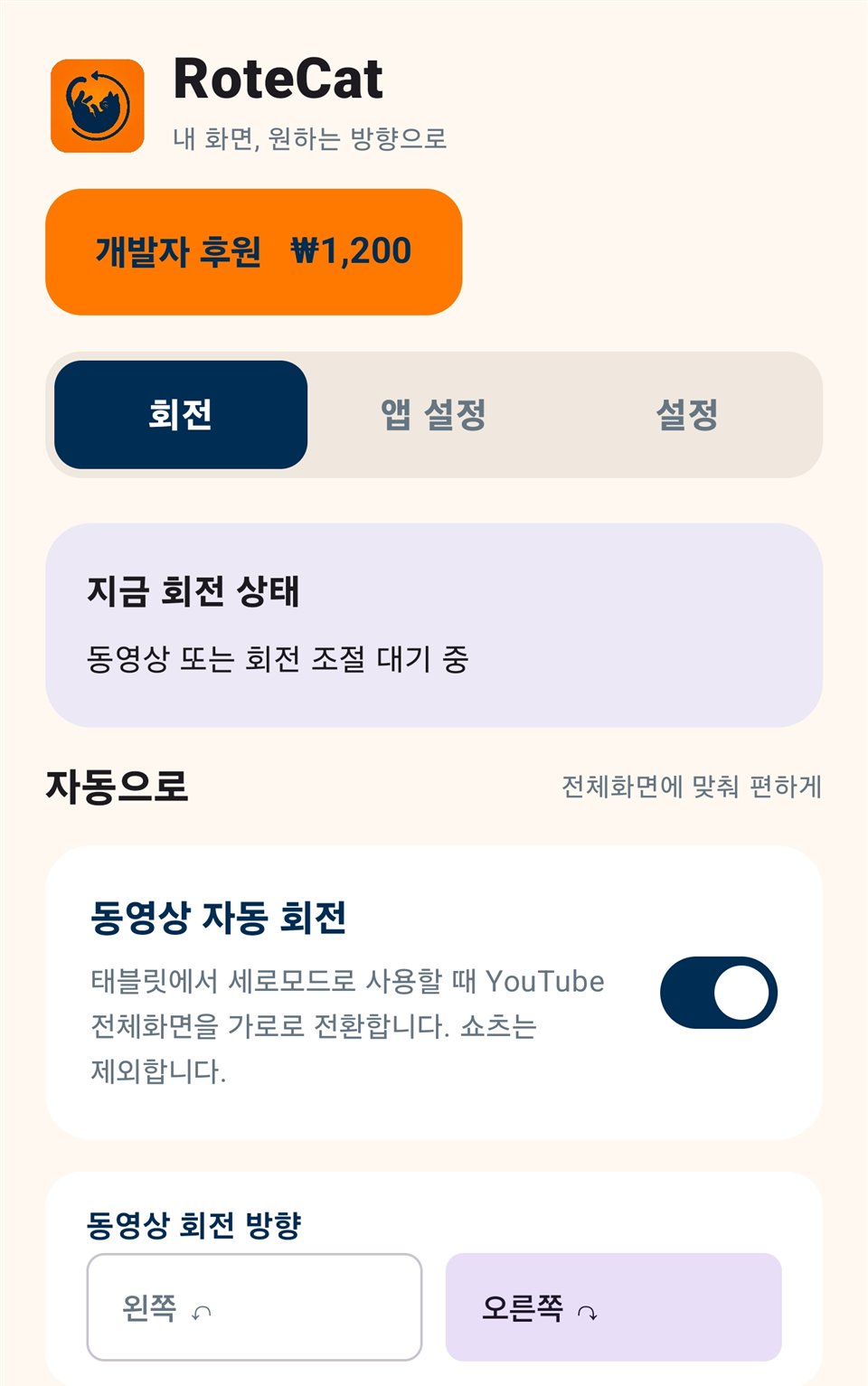
These are Korean-language app screens supplied by the developer. Select an image to enlarge it.
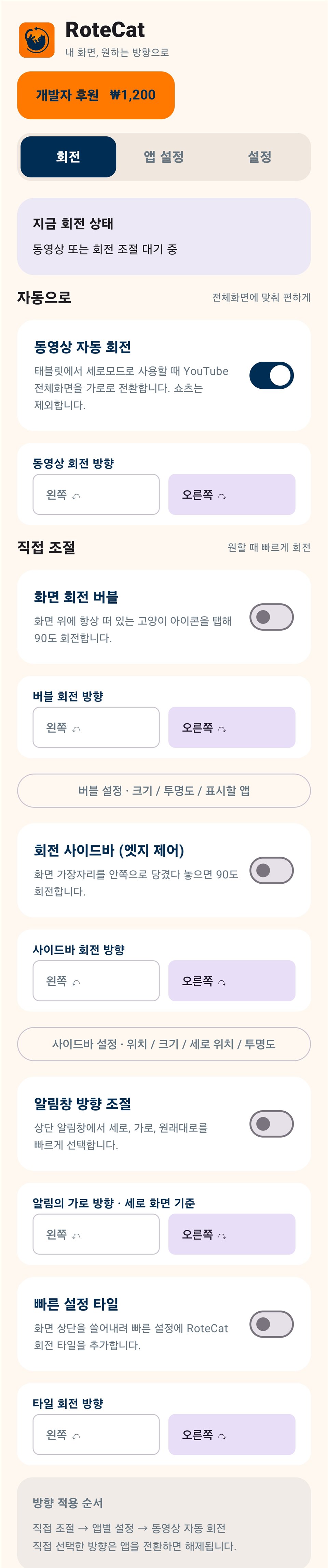
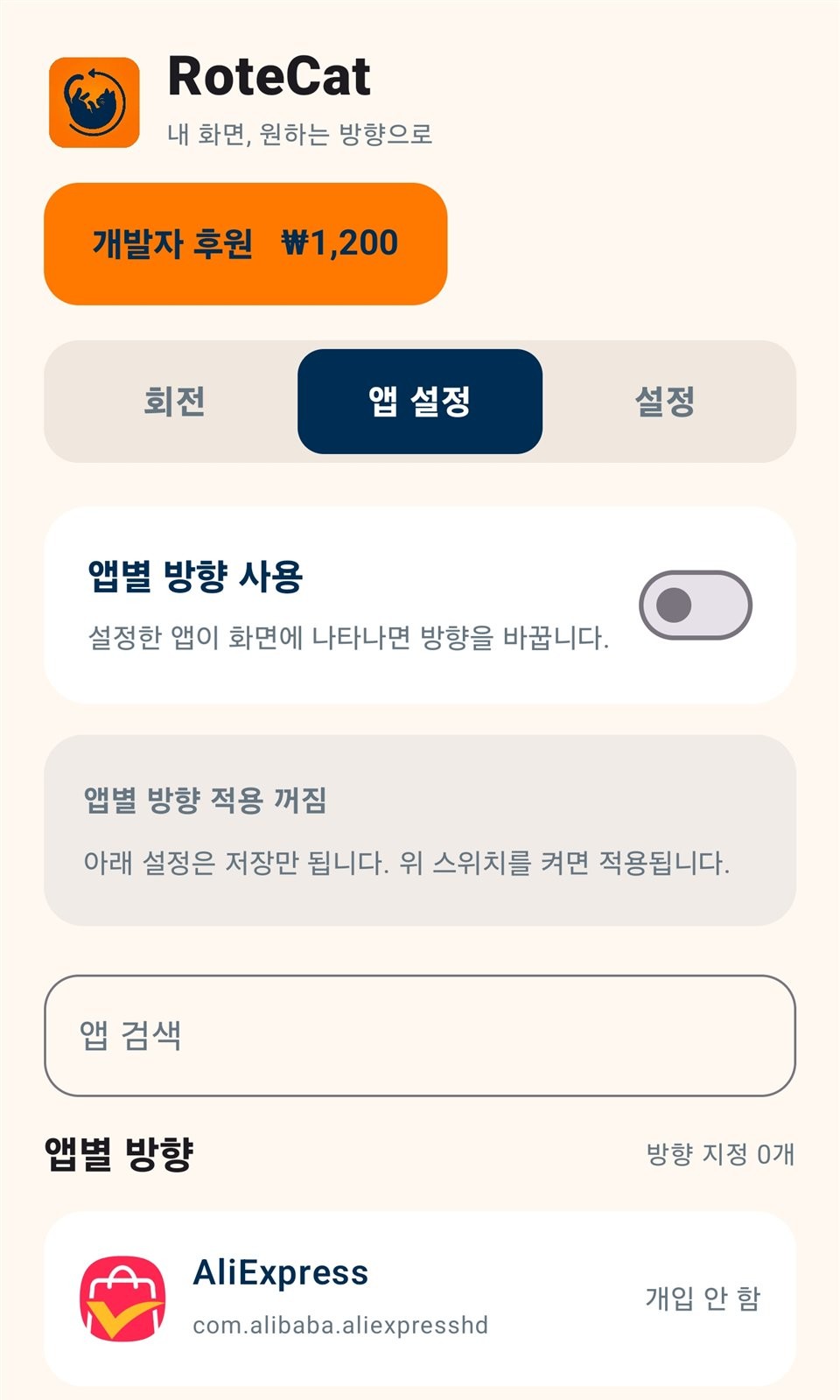
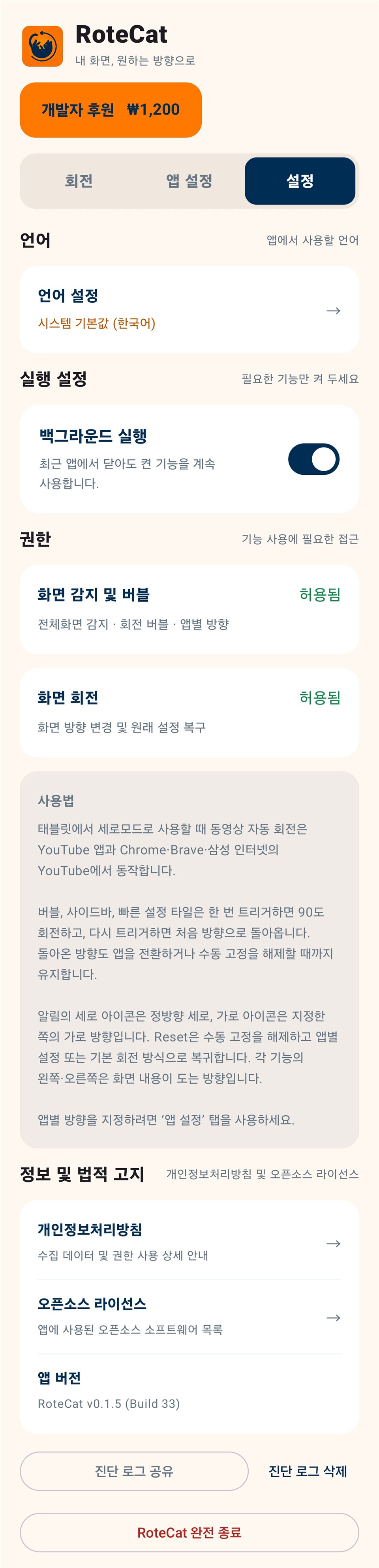
Developer-supplied RoteCat v0.1.5 (Build 33) screens. Some screens are cropped and bottom ads are excluded. Appearance may vary by device and version.
Some screens may show ads. An in-app donation can remove ads.
See the in-app privacy policy for details about permissions and data use. Review diagnostic logs before sharing them; unwanted logs can be deleted in the app.
Read the guide →